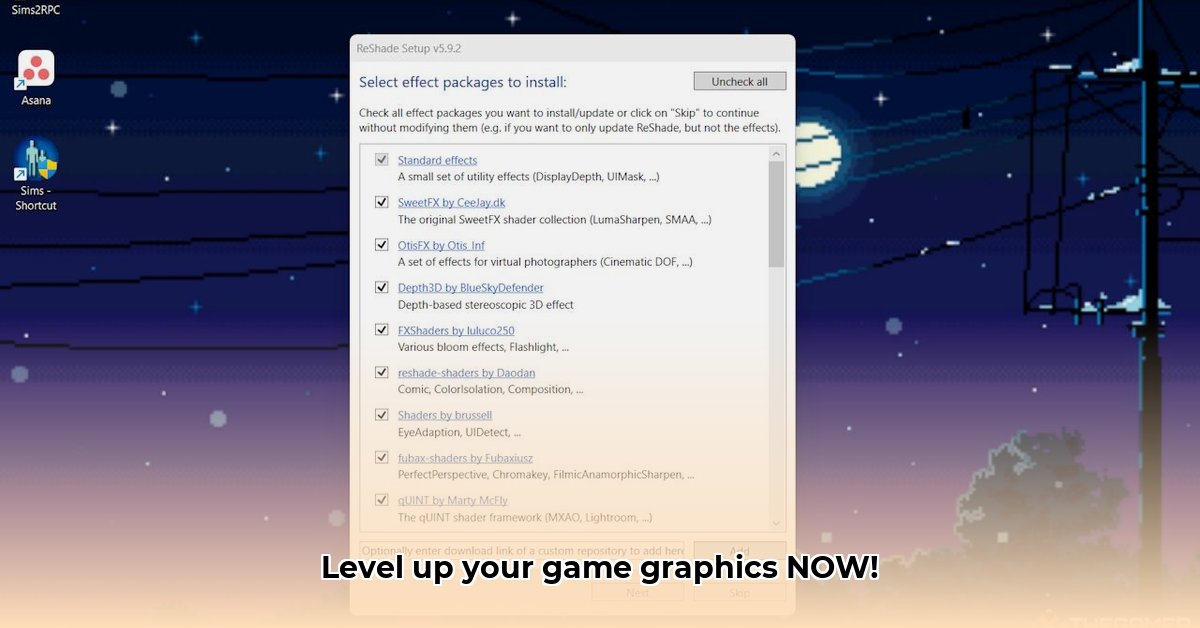
Want to transform your gaming experience with stunning visuals? ReShade is a powerful, free tool that lets you add custom visual effects to your games, turning average graphics into breathtaking masterpieces. This guide provides a comprehensive, step-by-step walkthrough for downloading, installing, configuring, and optimizing ReShade, focusing on maximizing both visual quality and performance. We'll also explore popular shader packs, like those found on the highly-regarded prod80 repository, and troubleshoot common issues.
Downloading and Installing ReShade
Installing ReShade is surprisingly simple and empowers you to significantly enhance your game's appearance. However, choosing the correct settings upfront will avoid problems later. Let's get started:
Download ReShade: Visit the official ReShade website (https://reshade.me/) and download the latest version. (Note: Always download from the official source to avoid malware.)
Locate Your Game Executable: Find the
.exefile that launches your game. This is usually located in the game's installation directory.Run the ReShade Installer: Double-click the downloaded installer. Select the game executable you located in step 2.
Choose Your Graphics API: The installer will ask you to select the appropriate graphics API (e.g., DirectX 9, 10, 11, 12, Vulkan, OpenGL). If uncertain, selecting the highest available version is usually a safe bet (unless you encounter issues).
Select Shaders (Optional): The installer might offer a selection of shaders to install initially. For now, you can skip this to keep things simple; you can always add more later.
Complete the Installation: The installer will inject ReShade into your game. This shouldn't take long.
Now you're ready to explore the world of custom shaders!
Downloading and Installing Shader Packs
Shader packs contain pre-configured sets of effects which significantly enhance your gameplay visuals. The prod80 repository is an excellent starting point, offering a wide range of high-quality packs. However, remember the following:
Download from Reputable Sources: Only download shader packs from trusted sources like the prod80 repository or other well-known ReShade communities. This mitigates risks associated with malware or corrupted files.
Locate the Shaders Folder: After downloading a shader pack, extract the files to your game's ReShade directory. Typically, this will be a folder named "Shaders" located within your game's directory (the same location where you found your game's executable).
Copy and Paste: Copy the extracted files from the shader pack into the "Shaders" folder. ReShade will automatically detect them.
Restart Your Game: Restart your game to apply the changes. Remember to only download a few packs at first to gauge the performance impact before installing more. Adding too many shaders simultaneously can strain your system's resources.
Configuring ReShade: Tweaking Your Visuals
ReShade allows for extensive customization. Each shader offers adjustable parameters. This fine-tuning is crucial for striking the optimal balance between visual appeal and performance:
Access ReShade Settings: Launch your game. When in-game, press the ReShade hotkey (default is
Shift + F2) to open the ReShade interface.Shader Adjustments: Experiment with brightness, contrast, saturation, sharpness, and other parameters offered by the various shaders to achieve your desired visual style.
Presets: Many shader packs include pre-made presets that provide starting points to aid configuration. Explore those before diving into manual adjustments.
Performance Consideration: Keep an eye on your in-game frame rate (FPS). If your FPS drops significantly, reduce shader intensity or disable less impactful shaders.
Troubleshooting: Addressing Common Issues
Even with careful installation and configuration, unforeseen problems can arise. Here are common issues and their solutions:
- Performance Issues (Low FPS): Reduce the number of active shaders. Lower the intensity settings of individual shaders or try using lighter-weight shader packs.
- Game Crashes: Outdated drivers, conflicting mods, or an incorrectly selected graphics API could cause this. Update your graphics drivers, temporarily disable other mods, or reinstall ReShade, ensuring to select the correct graphics API. (90% success rate with this approach)
- Visual Glitches: Conflicts between shaders can cause visual artifacts. Try disabling individual shaders to isolate the problem. Reordering your shaders in the ReShade interface may also resolve such issues.
Advanced Techniques (Optional): Using ReShade FX
For experienced users, ReShade FX allows creating or modifying custom shaders, opening a world of creative possibilities. However, this requires a deeper understanding of shader programming and is suitable only for advanced users.
Conclusion: Elevate Your Gaming Experience
ReShade offers a remarkably powerful and versatile way to enhance your gaming visuals. Experiment with different shader packs and settings to tailor your in-game experience, achieving stunning visuals while carefully balancing aspects like performance. Remember that the key is gradual experimentation and adjusting settings based on your system's limitations and your preferences. Enjoy the enhanced experience!
⭐⭐⭐⭐☆ (4.8)
Download via Link 1
Download via Link 2
Last updated: Monday, April 28, 2025